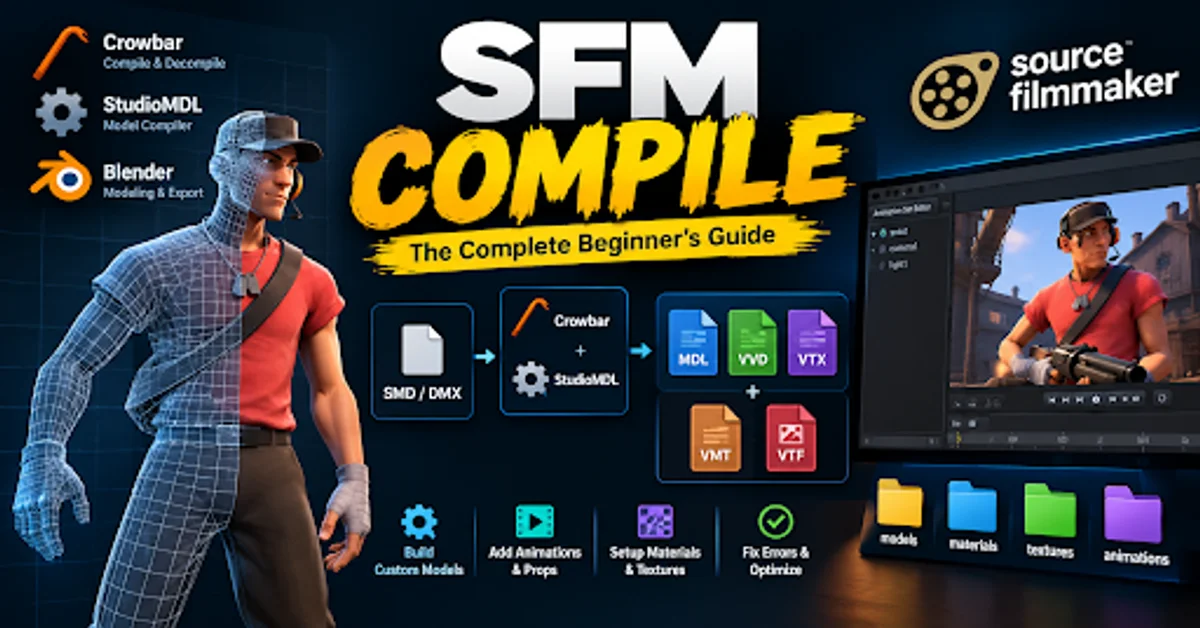
SFM Compile is the process of converting custom 3D models, animations, and related assets into formats that work with Source Filmmaker (SFM), Valve Corporation’s filmmaking and animation tool. It uses tools such as Crowbar and StudioMDL to process compatible source files, including SMD or DMX files, into compiled model files such as MDL, VVD, and VTX.
The process allows creators to import custom characters, props, and other assets into SFM for animation and filmmaking. It also requires correctly configured materials and textures, such as VMT and VTF files, to ensure models display properly. Understanding SFM Compile helps creators troubleshoot errors, manage custom assets, and build more creative cinematic projects.
Learning SFM Model Compilation gives creators greater control over their projects. Instead of relying entirely on existing assets, you can prepare original characters, furniture, scenery, accessories, and other objects for cinematic scenes.
Custom assets also support distinctive visual storytelling. Once you understand model conversion, material paths, and rig compatibility, you can develop a more flexible asset library and spend less time troubleshooting repeated problems.
Related: Tracqueur: Meaning, Uses, Types, and How It Works
Essential Tools Required for SFM Compile
Using Crowbar and StudioMDL for Compilation
Crowbar is a popular community tool for working with Source Engine models. Its graphical interface simplifies tasks such as compiling and decompiling supported models, selecting game configurations, and reviewing compiler output. It is especially helpful for beginners who prefer not to manage every command manually.
StudioMDL performs the actual model compilation for supported Source workflows. The executable is commonly supplied with Source development tools or relevant game installations. Because different Source branches can have different requirements, select a compiler compatible with your target environment rather than assuming every version works identically.
Preparing Models with Blender and Source Tools
Blender is a widely used free 3D modeling application. The Blender Source Tools add-on supports workflows involving Source model formats, helping artists export geometry and animation data for compatible pipelines. Correct scale, material assignments, and skeletal structure should be checked before exporting.
Autodesk Maya and Autodesk 3ds Max are alternatives for artists who already use professional modeling software. Whichever application you choose, the objective is the same: prepare clean geometry, appropriate UV coordinates, and compatible rigging before compilation. A reliable export saves time later.
Understanding QC Files and Source Engine Formats
Important QC Commands and File Structure
A QC file is a plain-text script that acts as a blueprint for model compilation. It tells the compiler where to find source geometry, what output model name to use, and which materials or animations should be associated with the model. Learning the QC format is an important part of any SFM Compile Tutorial.
Common directives include $modelname, $body, $cdmaterials, $sequence, and $collisionmodel. Their exact requirements depend on the asset. For example, $modelname specifies the compiled model’s output path, while $cdmaterials identifies the material search path. Incorrect paths or unsupported commands can cause compilation errors.
Understanding SMD, DMX, MDL, VVD, and VTX Files
SMD and DMX are source formats used in supported Source asset workflows. They can store model geometry and, depending on the format and export, skeletal or animation information. A QC script references the appropriate files so the compiler knows which assets to process.
The compiled output commonly includes MDL files for model information, VVD files for vertex data, and VTX files for optimized rendering data. Some models also use PHY files for physics and collision information. VTF files store texture data, while VMT files describe how materials use those textures. These components work together but are not interchangeable.
How to Compile Models in SFM Step by Step
Preparing Model Files, Textures, and Materials
Start by checking that your model is suitable for the target Source Engine version. Inspect its geometry, UV mapping, normals, skeleton, and scale. If the model uses animations, verify that its bone hierarchy and reference pose are consistent with the animation files.
Next, export the model in a supported format and prepare the necessary QC script. Organize your material files separately, using VMT definitions and VTF textures where required. Keep file and folder names consistent, and confirm that every referenced source file exists before running the compiler.
Compiling and Testing Models in Source Filmmaker
Open Crowbar and choose the appropriate game or compiler configuration. Select the QC file, review the output location, and start compilation. Read the compile log instead of judging success only by whether the process finishes. Warnings may identify issues that become visible later in SFM.
When compilation succeeds, place the output files in the correct model directory within the appropriate game content structure. Ensure the associated materials and textures are installed in their expected locations. Launch Source Filmmaker, locate the model in the asset browser, and test it in a simple scene before using it in a complex animation.
Common SFM Compile Errors and Their Solutions
Fixing Missing Textures and Incorrect Material Paths
One recognizable problem is the purple-and-black checkerboard pattern, which commonly indicates missing or inaccessible materials. It can appear when a VMT file is absent, a VTF texture cannot be found, or the material path does not match the model’s references.
Check the $cdmaterials directive and compare it with the actual material directory. Confirm that the VMT references the correct texture name and that the required VTF file exists. Remember that model compilation and texture preparation are separate tasks; rebuilding the model alone will not fix every missing-texture problem.
Resolving Bone, Animation, and Compilation Errors
Broken or incorrectly positioned animations may result from mismatched bone names, inconsistent hierarchies, incompatible animation files, or differences between reference poses. Check the exported skeleton and ensure that the model and its animation sequences use compatible rigs.
If compilation fails, inspect the earliest meaningful error in the compile log. It may reveal a missing file, an invalid QC directive, an unsupported model structure, or a path problem. Fix one issue at a time, recompile, and test again. This method makes SFM Compile Troubleshooting more systematic and reduces confusion caused by multiple simultaneous changes.
Advanced SFM Compile Techniques
Batch Compilation and Custom Model Workflows
Batch compilation can simplify projects that contain many props or characters. Crowbar and other compatible workflows may allow multiple QC files to be processed with less repetitive setup. Before compiling an entire asset collection, test one representative model to confirm that your configuration and folder structure work correctly.
For larger projects, establish a repeatable pipeline that separates source files, exported geometry, QC scripts, compiled models, and materials. Consistent naming and documented compiler settings make it easier to identify problems and update assets without accidentally overwriting working versions.
Working with Custom Animations and Collision Models
SFM Animation Compilation requires attention to skeleton compatibility, sequence definitions, and animation exports. Each animation must reference the appropriate source data, and the model must support the required bones. A technically successful compile does not guarantee that every animation will look correct, so test important movements inside SFM.
Collision models are useful for assets that need physics interaction, although not every cinematic prop requires complex collision behavior. A simpler collision mesh can reduce unnecessary complexity. Follow the requirements of your target compiler and asset type, since collision and animation directives can vary across Source Engine configurations.
How to Optimize SFM Compile Performance
Reducing Model Complexity and Compilation Time
SFM Model Optimization begins with sensible geometry. Remove unnecessary internal faces, avoid excessive detail where it will not be visible, and reduce redundant materials when practical. Simpler models often compile more easily and can improve viewport performance during animation.
Keep collision geometry simpler than the visible model when possible. Large projects may also benefit from lower-detail versions of assets for preview scenes. Storage speed, model complexity, texture preparation, and compiler configuration can all influence workflow time, so benchmark your own setup instead of assuming a particular hardware upgrade will produce a fixed improvement.
Organizing Assets for Faster and More Reliable Results
A clean directory structure reduces time spent searching for missing files. Use separate folders for source meshes, exports, QC scripts, materials, and compiled outputs. Consistent naming also helps prevent duplicate files and confusion between different model versions.
For collaborative projects, document important settings and keep backups of working QC files. Version control can be especially useful when several people are adjusting geometry, materials, or animation. These simple habits improve reliability as your asset library grows.
SFM Compile Best Practices for Beginners
Managing Project Folders and QC Files
Beginners should start with a simple prop rather than a complicated animated character. A small project makes it easier to understand the relationship between source geometry, QC instructions, compiled output, and material files.
Keep the original model and exported source files untouched in a backup folder. Make experimental changes in a working copy, and add comments to QC scripts when a directive needs explanation. This approach helps you return to a known working version if a later change introduces an error.
Testing Compiled Models and Troubleshooting Logs
After compilation, test the model in a simple SFM session. Check its scale, orientation, materials, visibility, and rig behavior. If the model has animation sequences, test each important sequence before using the asset in a finished scene.
Compile logs are valuable diagnostic records. Save them when investigating difficult problems, and compare them with logs from earlier successful builds. If a problem persists, consult reliable Source modding documentation or community discussions and include the exact error message when asking for help.
SFM Compile vs. Source 2 Filmmaker
Key Differences Between Source 1 and Source 2
Traditional Source Filmmaker workflows use Source 1 tools and model formats, including QC scripts and StudioMDL for supported model compilation. Source 2 uses a different content pipeline, with different asset formats, tools, and project requirements. The two environments should not be treated as interchangeable.
This distinction matters when following tutorials or downloading tools. A guide written for one engine version may recommend commands or formats that do not work in the other. Always confirm which version the instructions target before applying them to your project.
Choosing the Right Compilation Workflow
For the original Source Filmmaker, use a compatible Source 1 workflow and verify the required model and material formats. Assets from the Steam Workshop are often already prepared for their intended environment, although dependencies and installation paths may still require attention.
For Source 2 projects, follow the relevant Source 2 documentation and tools instead of copying the traditional QC-based process blindly. Choosing the right pipeline early prevents wasted effort and makes troubleshooting much easier.
Related: MataRecycler: Smart Recycling and AI Technology
Frequently Asked Questions
What is SFM Compile?
SFM Compile is the process of converting custom 3D models and related source files into formats that the Source Engine can use in Source Filmmaker.
Which tools are used for SFM Compile?
Popular tools include Crowbar, StudioMDL, Blender, and Blender Source Tools. These help creators prepare, export, and compile custom models for compatible Source Engine workflows.
How do you compile a model in SFM?
Prepare your model files, export them in a compatible format, create a QC script, and use Crowbar or StudioMDL to compile the model. Then install the output files and test the model in Source Filmmaker.
Why does my SFM model have purple-and-black textures?
This pattern usually indicates missing materials or textures. Check the VMT and VTF files, verify the material directory, and make sure the paths in your QC script are correct.
Can I use SFM Workshop models without compiling them?
Yes, most models downloaded from the Steam Workshop are already compiled for their intended environment. However, you may need to install dependencies or resolve compatibility issues before using them in your project.
Summary
SFM Compile connects creative modeling software with the Source Engine’s asset requirements. Understanding Crowbar, StudioMDL, QC scripts, model formats, and material paths gives you a practical foundation for importing custom content into Source Filmmaker.
The most reliable workflow starts with clean source files, accurate paths, compatible formats, and careful testing. When problems occur, compiling logs and making small, controlled changes help identify their causes without making the project harder to manage.
Begin with a simple prop, complete the compilation process, and confirm that it appears correctly in SFM. Once that workflow is reliable, progress to more complex models, skeletal animation, and collision setups. Each successful project will strengthen your understanding of the asset pipeline.
With patience and consistent organization, SFM Compile becomes a manageable technical skill rather than a frustrating obstacle. You can then devote more time to what matters most: building original scenes, improving your animations, and telling compelling visual stories.